




Touhou 12.5 Double Spoiler

The Newest addition to the touhou series is here
title

"Touhou 07: Perfect Cherry Blossom"

"ahmaygawd, The Bullets shoots Bullets"
title

Pachouli says...!!!

Defend the Library!!!
title

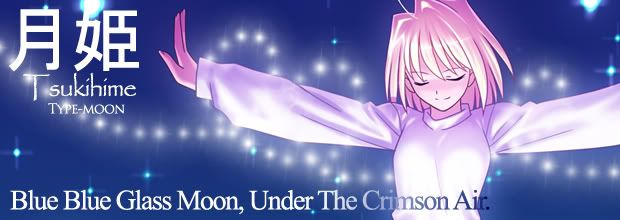
Tsukihime by Type-moon

Blue Blue Grass Moon, Under the Crimson Air
title
OtakuTei (Otakuhouse) is a community for otakus, anime lovers, and for those who loves japan related stuffs. The site is dedicated to bringing you the latest news about anime, manga, fanbases, and other Otaku related materials . While in the same time, providing tips, downloads, for everyone. OtakuTei is still new and we are still having our ups and downs but we are continually updating and changing things so stick around and stay tuned.
 
Showing posts with label Tutorial. Show all posts

Installing East Asian Language Support

Genuflected by Raf


Okay, I'll make this tutorial (mostly Copy Pasta) for those who have problems concerning east asian language support on their computer. 


First of all. 
Here is the tutorial if you have a WindowsOS CDROM or DVD
You must be logged on as an administrator or a member of the Administrators group in order to complete this procedure. If your computer is connected to a network, network policy settings may also prevent you from completing this procedure.
1.
Open Regional and Language Options in Control Panel.
2.
On the Languages tab, under Supplemental language support, select the Install files for East Asian languages check box.
3.
Click OK or Apply.
You will prompted to insert the Windows CD-ROM or point to a network location where the files are located.
4.
After the files are installed, you must restart your computer.

Note
•
To open Regional and Language Options, click Start, click Control Panel, click Date, Time, Language, and Regional Options, and then clickRegional and Language Options. 
•
The East Asian languages include Chinese, Japanese, and Korean. The files for most other languages are installed on your computer automatically by Windows.
•
It is recommended that you install these files only if you are going to be entering or receiving text in one or more of these languages. The Chinese, Japanese, and Korean files require about 230 megabytes (MB) of space on your hard disk. In addition to the language files, Input Method Editors (IMEs) are installed for each of the three languages.
•
After you install the East Asian language files on your computer's hard disk, you must add the individual languages for which you want to enter and display text. After you add a language, the language is loaded into memory every time you start your computer. For more information, click Related Topics. 
•
To remove the Chinese, Japanese, and Korean files from your computer, clear the check box, and then click OK or Apply.

*taken from Microsoft.com*

And here is the tutorial for those who don't have a CD or DVD of Windows OS
Well you can just download the individual language pack and install it on your computer..
Hope I helped a lot for those who are having problems concerning this topic. 

Microsoft Applocale Utility Tutorial

Genuflected by Raf

Microsoft Applocale is a useful tool to run most Japanese or other language based software more accurate and non-glitchy. This is totally important and helpful to view Japanese, Korean characters etc, in softwares and applications.


First of all, make sure you have East Asian Language Support installed in your PC, you can refer to this post for installing East Asian Language Support.


Download Microsoft Applocale Utility from microsoft.
Link
And Install it.


(OG are not responsible for any damage of your computer due to bad understanding of this tutorial.)
How to configure a game on Applocale..
Step 1.
Run applocale and click next


Step 2.
Click on "Launch an Application" then Browse for the .exe of the application your using. example "Line-Kill! Spirits" then click next


Step 3.
Choose the following characters (it represents Nihongo"), the language your gonna use varies from softwares your using
Step 4:
Click Create a shortcut then type the name of the shortcut and click finish. And now your done.. You can see the shortcut in the Microsoft Applocale folder on your start menu. Happy Playing


Adobe Flash Player debug

Genuflected by Raf

Adobe Flash Player debug is a great software to view shockwave files on your own computer....
It is necessary for playing ".swf" files downloaded from here and  in any other sites.


To download, click the link below to be forwarded to adobe's download page. Browse down till you find 


"Adobe Flash Player 10 — Debugger Versions (aka debug players or content debuggers)"  then click the windows flash player project content debugger to download it..


after downloading... place it on a secure place (a good choice is your windows folder) then run it once... It will register itself on your computer so that the next time you clicked  an .swf file.. It will run on automatically. 

have fun!!


Download

Touhou 12.5 (Momiji Gold Rank)

Touhou 12.5 Double Spoiler

Posted by Raf
03-15-10

Touhou 07 Perfect Cherry Blossom

Posted by Raf
03-04-10

Microsoft Applocale Tutorial

Posted by Raf
03-10-10

Crusis Fatal+Fake

Posted by Raf
03-06-10

Blood Over

Posted by Raf
03-10-10

Followers